Visualizzazione post con etichetta personal tracking. Mostra tutti i post

venerdì 23 gennaio 2015

Track your life with Tasker and Keen.io - Part 2

This post is the second part of my previous post (Track your life with Tasker and Keen.io - Part 1) on using keen.io for personal life event tracking

In part 1 I have quickly explained how I use keen.io simple REST API to track and store events in the keen.io's cloud.
I have also created an Android application using Tasker and I made everything available on git hub for everyone to use and contribute.

In this post I am now focusing in visualizing the information collected and stored in the cloud.
 I should admit that once again, keen.io is doing most of the job for me. Yet another reason for me to considering it a great service.


Datahero.com

One very simple way to visualize keen.io events information is to use another cool service from the team at https://datahero.com/

On their website is written that Datahero "Create rich analyses and share your insights in seconds."

I used for something like 15 minutes and I can only agree with that statement.

I have created a trial account and in matter of minutes I was proficient in visualizing my analytical data from keen.io

You just need to:
  • connect keen.io to datahero
  • import your preferred keen.io colletion
  • create some charts using a cool visual editor
  • add your chart to a dashboard

There are way too many option for me to explain in this post but from what I have seen it is a very interesting service.

Below the simple dahsboard I have created by connecting keen.io and datahero. It took me no more that 12 minutes!!! :)


Keen.io dashboards

Al alternative way (there are many more ways) for lazy :) people like me is to use the great tools provided by keen.io at this link https://github.com/keen/dashboards 

Even if you are not a developer you can easily build your own personalized dashboard in minutes with the tools provided.

Start by cloning the git with the following command (on Linux. On Windows can be different)

git clone https://github.com/keen/dashboards.git

This will provide you with plenty of dahsboard layouts ready to use


and some interesting example to learn from (what else one can ask for? :) )
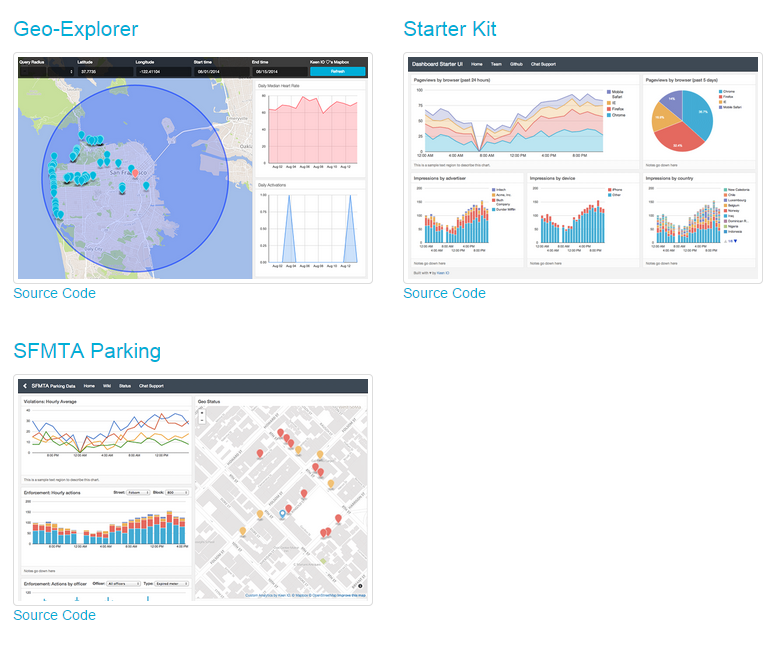


I am here using the two and one layout which I like it


you can find it in the following directory <YOUR DIRECTORY>/dashboards/layouts/two-and-one assuming that YOUR DIRECTORY is where you have executed the git clone command

Have a look at index.html. This is the file to modify to populate your dashboard with beautiful charts


The structure is very simple. Every chart area of the layout is a set of 3 self-explanatory DIV

Set the proper title for your chart (<div class="chart-title">) and add a relevant note (<div class="chart-notes">)

In order to add the chart you need to modify the <div class="chart-stage"> in the following way:

  • delete the <img data-src="holder.js/100%x350/white"> line. This is just a placeholder
  • add an id to the chart-stage div like this:  <div class="chart-stage" id="chart1">

The id will be useful later and will be used by the keen.io data visualization API 

keen.io query designer

Now we have our layout ready to display our chart which is taking the data out of the keen.io collection.
What is missing is a small chunk of Javascript which build the proper query and instruct the kee.io client to display the chart.

Don't worry this is unbelievable easy: just go to https://keen.io/project/<YOUR PROJECT ID>/workbench

You will access your keen.io Workbench. This is a very easy to use tool to generate the necessary JS code for your dashboard


Select the mandatory collection you want to query and the analysis type (sum, average, ....).
In addition you might specify optional parameters like filters, timeframe, ....
You can read all the detail about Data Analysis API here 

When you have properly set up your query just hit the Run Query button and you will be immediately see a chart representing your query.


In order to see the Javascript code which generates the chart click on the Javascript tab. You should see something similar to this


That's it!! :)
Just cut&past this chunk of JS into your index.html, wrap it into a <script></script> block  and you will see the chart appearing in your own dashboard.


You should replace the projectId and the readKey with your values that you can find in your keen.io project page.

Also very important is to change this line client.draw(query, document.getElementById("my_chart") in client.draw(query, document.getElementById("chart1")

This line is telling keen.io visualization client to run the query called query and to display the resulting chart in the div with id chart1

Save your file and refresh your web browser and bam!!! Your own dashboard is up and running

Here a simple one I have created out of the data collected with my Track Me application


These layouts are fully responsive and display perfectly also on my android phone


The charts are fully customizable and have many options to set.
You can find detailed information here Google Charts

In this two part series of post I have shown you how it is easy to collect, store, analyze and visualize your valuable information.  The trick is to use smart and easy to use tools like keen.io and others.

If you like this idea let me know. If you don't like it let me know
Feel free to contribute.

Happy analytics!!! :)

sabato 17 gennaio 2015

Track your life with Tasker and Keen.io - Part 1

When I was a kid I was used to count everything around me. Actually I am still having such habit. :)

Everywhere I go I count objects around me. No particular reason for it, just that I get bored very quickly and counting keep me busy with something to do. :)

I always been interested in numbers, statistics and analytics. Over the time I have also developed some simple web app helping me to track important parameters for me.

Recently I have stumbled upon a fantastic service called keen.io  and I have decided to build a simple app to keep track of my life events and parameters.

In this post I'll explain you what I have done and I'll share the app with you so you can take it and improve it in case you find it useful.


Tools

The tools I have used for my tracking application are:
  • keen.io: a very good data collection and analytics service in the cloud
  • Tasker: the best app for Android which I have ever purchased

Keen.io

Keen.io allows me to send event data to the cloud via a well designed REST API. Store such data in the cloud and create beautiful analytics dashboards . They have a free of charge plan for up to 50.000 event/month, clear and well written documentation, SDK for the major languages (JS, Ruby, Python, iOS, Android, Java, .Net and even Scala).
In short they provides everything I always been looking for to implement a simple and extensible tracking application.

For additional information I suggest you to look into the documentation 

Tasker

Tasker is defined as "Total Automation for Android" by its author.
This is totally true and I would add that Tasker is the factotum for Android. Whatever you have in mind can be more or less easily achieved with tasker and its plug-ins.

With Tasker App Factory you can even build native Android application that you can even distribute through the Play store.

For additional information I suggest you to look into the user guide

TrackMe app

Nowadays you can find in the market many cool devices and apps that helps you to track different aspects of your life. There are tons of fitness bracelets, activity trackers, sleep trackers, whatever trackers. 
However those cool devices are all independent form each other. They all provide a separate app and analytic tool.
The only "smart" device which is always with you from morning to end of the day is your phone.
So why not using it as one single tracker device? 
With your smart phone you can track your fitness activities, your sleep etc...

This is exactly what TrackMe app is doing.


Tasks and Scenes

Using Tasker tasks and scenes I have created a simple and easily extendable app to track whatever parameter is relevant for me.

The scenes are basic input dialog which collects a specific activity or parameters (i.e. my weight, the number of Km of my car, fuel consumption, etc...)

The tasks are basic set of instruction and command to execute. The basic action shows the scene, collect the value entered by the user (me) and send the value to keen.io to be stored in a specific collection.

So far I have created the following scenes:


  • trackme_dlg_gas: scene to acquire gas or electricity counter number


  • trackme_dlg_denti: scene to acquire information whether my daughter has washed her teeth or not


  • trackme_dlg_dieta: scene to acquire the daily point of a diet program I am following


  • trackme_dlg_peso: scene to acquire my weight 


  • trackme_dlg_rifornimento: scene to acquire the information about my car when I refill the tank


  • trackme:  the main app scene


So far I have created the following tasks:
  • TRACKME_PESO
  • TRACKME_GAS
  • TRACKME_ELETTRICITA
  • TRACKME_DENTI
  • TRACKME_DIETA
  • TRACKME_RIFORNIMENTO
  • TRACKME: the main task 

All the above tasks are executed when the relative icon in the main scene is tapped with the finger.

  • TRACKME_KEEN_CONFIG: contains the keen.io configuration 
  • TRACKME_KEEN_SENDER: sends through HTTP POST the event data information to cloud keen.io
The two above tasks do not have any scene associated. They are just used to interact with keen.io service.


Some of the above task and scenes are configured through the use of Tasker's variable.
This is to allow anyone to easily change important parameters.

As an example the title of each scene is not hard-coded but is defined in a variable. So you can change it without modify/editing the scene.

Keen.io Configuration

In order to use this tasker app you first need to configure a couple of simple kee.io parameters.
You can find such information in your keen.io's account page.

What you need is your keen.io:

  • Project ID
  • API Key

Now you can open the TRACKME_KEEN_CONFIG task and set the following variables:


  • %TRACKME_KEEN_PROJECT_ID: in the To field insert your keen.io Project ID
  • %TRACKME_KEEN_API_KEY: in the To field insert your keen.io API Key

That's it!! At this stage your Track Me app is ready to use.

Other Configurations

Each task which is associated with an image icon in the Track Me app has few variables can be customized according to your own preferences.

Let's analyze those variables:

  • %TRACKME_DIAG_TITLE:  change the content of this variable to personalize the Title of the UI dialog associated to the task
  • %TRACKME_KEEN_COLLECTION:  change this variable to personalize the name of the keen.io's collection you want to store the data in
  • %TRACKME_KEEN_EVENT:  change the content of this variable to personalize the data structure of your data event you want to store on keen.io cloud
Next to those variables there are other text string that can be changed in order to display your preferred text messages. (i.e. all my messages are in Italian, but you can change it with English text)


Extending Track Me app

I provide a template scene called trackme_dlg_template.

In order to create a new tracker follow the below steps:

  • duplicate the template scene
  • customize the template scene as you prefer
  • make sure your new scene properly set a variable called %TRACKME_DLG_VAL.  This is the data field which will go into the %TRACKME_KEEN_EVENT variable (I have used variables to pass data from scenes back to the task and to keen.io cloud)
The %TRACKME_DLG_VAL variable should be set according to the below:
  1. NaN in case you want to abort the operation (i.e. pressing the Cancel button)
  2. Value in case you want to send an event data to keen.io

  • create or duplicate an existing task
  • properly configure the newly created task
  • edit the main trackme scene
  • add a new image to main scene (select your preferred icon)
  • associate such an image to the newly created task (see above)
  • edit the text below the icon image in the main scene
That's it. You can extend Track Me app with as many tracker as you want in few minutes.


Icons

In my Track Me app I have used a mix of built-in icon and icons from the Glossy Silver HD icon pack (freely available in Play Store)

Obviously this is my choice but nothing is preventing you to use a complete different icon set.

Code

All the tasker scenes and tasks are available on my git hub 

Download it, use it, change it, improve it, do whatever your like and let me know your result. I can only learn from you!!! 

NOTE: I provide on github the userbackup.xml file. This way you can very easily import the full Track Me application in your Tasker. Please note however that this will completely overwrite and existing profiles, tasks and scenes. So always make sure you make a proper backup of your Tasker objects. 

Use

Let's now see a quick example on the usage of Track Me app

  • run the trackme task: I do it by tapping on a icon on my home screen on Android phone (you can add it through tasker widget


  • Click one of the icons (Peso = Weight in this example)
  • The proper UI dialog is now shown

  • Enter the weight though keyboard
  • Press the Send (INVIA) button
  • Now the dialog close and you will see again the main app
  • A couple of confirmation message will be shown
Sending Data


Weight correctly registered

At this stage your weight has been correctly sent and accepted by keen.io. It is now stored in your trackme_peso collection and it is available for further use (analytics).


If you regularly (daily or weekly) send your weight to keen.io you can easily answer to questions like those:
  • what was my minimum weight in the last 6 months
  • what was my maximum weight in the last 6 months
  • what was my average weight in the last 6 months
  • how many time I have gone above the 75 Kg in the last 6 months
  • ...
  • ...

Let's see now that the weight just sent to keen.io is properly stored.
Go to your keen.io account and select the project you have configured in %TRACKME_KEEN_PROJECT_ID

You should see something like that


Now click on Last 10 Events


As you can see there are 5 different events (weight) in my collection.

The #1 is the last sent. Click on it and you show see something like that


Now we can see that the weight (80 Kg) we have inserted has been properly stored by keen.io


Contribute

If you are interested in this concept feel free to contribute.
You can do it in many ways:
  • spot errors
  • make suggestion to improve the existing app.
  • create new scenes and task
  • suggest new trackers
  • improve the graphical design
  • ...

Conclusion

The combination of such incredible tools like Tasker and keen.io allows me to quickly and easily keep track of the important aspect of my life.
It has never been easier than now to create useful application for our daily life. We should take advantage of that.

I hope the sharing of my work here will create some discussion. I am curious to read about new tracker and new aspect of our busy life to track and analyze.

In part 2 I will quickly show how to visualize and analyze the data collected and stored on keen.io.

Cheers!!